SYMBIOS HANDSET Manual
Welcome to the SYMBIOS HANDSET manual.
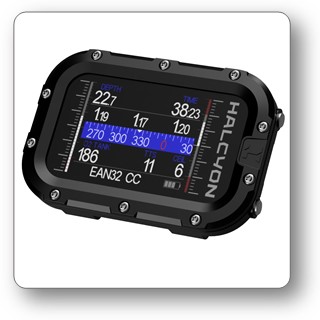
USPs
- Symbios Wireless Ecosystem - The SYMBIOS HANDSET can receive wireless data from multiple sources: Tank Pods, Rebreathers, DPVs, GPS Buoys, Lamps, etc.
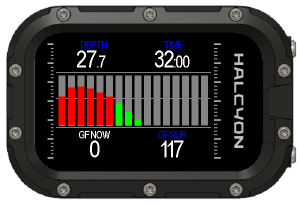
- Gradient Factor Chart, delivers real-time visualization of all compartments supersaturation, and provides deeper insight into decompression obligations and decompression stress.
- Patented Trim Indicator – Provides accurate, real-time feedback on diver trim and body position for optimal underwater efficiency and control (requires a SYMBIOS Tank Pod).
- Training Mode – Allows divers to train decompression schedules, precise stop-depth control, and gas-switch procedures during shallow training dives in a safe environment without actual decompression obligations..
- Full integration into the SYMBIOS App (Android and IOS)
- Setting up the dive computer (Settings, Gas Table, etc)
- Dive simulation
- Dive data download/logbook
- Integrated ECCR Pre-Dive checks
- Social Platform
-
BUDDY Screen, which can display pO2 values and tank pressures of your buddies SYMBIOS ECCR. This is especially useful for instructors, who can view then on their SYMBIOS HANDSET not only the pO2 senosr data of their own ECCR but also pO2 data of the students SYMBIOS ECCRs.
-
Full-color transflective screen - perfectly readable also in bright sunlight even without backlight.
- Ultra-thin case, ergonomic form factor.
-
Very easy to read large numbers screen.
-
Pre-programmed gas library.
- Intuitive 2-button operation.
- High level of customization, with a customizable field, custom screens and custom functions.
- Trimix OC, CCR and Gradient Factors.
Introduction
Thank you for purchasing the SYMBIOS HANDSET dive computer.The SYMBIOS HANDSET is an advanced dive computer built from the toughest materials and highly sophisticated electronic components. The Hybrid Transflective Color Screen display is extremely easy to read, even in bright sunlight. The SYMBIOS HANDSET can be used as a dive computer for air, NITROX, TRIMIX, and closed circuit rebreather diving. The SYMBIOS HANDSET also features an innovative wireless interface. This interface allows data reception from multiple sources, including up to seven tank pressure transmitters, wireless rebreather interfaces, navigation systems, or, for example, a diver propulsion vehicle (DPV).
Currently, the device can receive wireless data from:
- SYMBIOS Tank Pod
- SYMBIOS pO2 Transmitter
- SYMBIOS pO2 Transmitter, P-Port version
- SYMBIOS CM ECCR
- SYMBIOS GPS Buoy
- DPV equipped with a Halcyon Symbios-compatible wireless transmitter
- External compass
- SYMBIOS wireless OEM interface
The SYMBIOS HANDSET, together with a compatible SYMBIOS Tank Pod, is classified as Personal Protective Equipment under the EU Regulation 2016/425 and protects against risks listed under PPE Risk Category III (a): substances and mixtures which are hazardous to health. Based on EU PPE Regulation 2016/425 Annex I, the SYMBIOS HANDSET protects the user/diver from the risk of drowning (Category III (i)) by displaying vital tank pressure information which allows for appropriate life-saving action.
Design Philosophy
The Halcyon SYMBIOS HANDSET dive computer embodies simplicity, reliability, and user-centric functionality. Engineered to seamlessly integrate with a diver’s workflow, it prioritizes intuitive operation and robust performance in challenging underwater environments. Developed in collaboration with exploration divers with years of experience, the SYMBIOS HANDSET reflects a deep understanding of the practical needs of divers in the most demanding conditions. Its clean, easy-to-read interface with customizable displays presents information in a thoughtfully organized manner, allowing divers to access the specific data required for each phase of the dive while maintaining quick access to secondary information through different pages. Its ergonomic design ensures comfort and ease of use, even with thick gloves, while its durable construction is built to withstand the demands of technical and recreational diving. By blending advanced technology with insights from seasoned professionals, the Halcyon SYMBIOS HANDSET empowers divers to focus on their dive and inspires confidence in the performance of their equipment.
Safety Considerations
Before using the SYMBIOS HANDSET, please read and understand the information provided in this manual in its entirety. Be aware that diving has many inherent risks. A dive computer considerably increases diving safety, but it does not eliminate the remaining risk of serious injury or death caused by decompression sickness, oxygen toxicity, or other inherent risks of scuba diving.
You should not use this SYMBIOS HANDSET if you are not aware of or if you do not accept those risks.
In this manual, the following three precautionary messages are used: WARNING, CAUTION, and NOTICE symbols provide users with necessary information about potential hazards and proper procedures.
 WARNING statements describe potentially hazardous situations which, if not avoided, could result in serious injury or even death.
 CAUTION indicates a hazardous situation which, if not avoided, could result in minor or moderate injury.
 NOTICE statements are used to provide important information regarding installation, operation, maintenance, performance, general important tips, or instructions for a procedure or situation that, if not performed properly, might cause damage to the device but is unrelated to physical injury.
- Before using the SYMBIOS HANDSET, read the manual in its entirety to familiarize yourself with all of the functions of the device.
- Do not use SYMBIOS HANDSET if it shows any signs of damage or malfunction. Contact HALCYON or an authorized repair center.
- You must have successfully completed a course in scuba diving. You must have knowledge about the potential risks and hazards of scuba diving.
- The risk from decompression sickness (DSC) or oxygen toxicity, even if you follow dive tables or a dive computer, cannot be totally eliminated. This risk also depends on your physiological condition, which can vary from day to day. The SYMBIOS HANDSET cannot account for these variations.
- We strongly advise you to stay within the exposure limits provided by the instrument to minimize the risk of DCS.
- No decompression algorithm can provide a guaranteed safe decompression. It is your responsibility to be trained, dive safely, carry backup tables and instrumentation, and compare any decompression schedules generated with the SYMBIOS HANDSET against established diving tables.
- Do not ignore warning signs and indicators on the SYMBIOS HANDSET. This may result in serious injuries and can be even lethal.
- You should never share the SYMBIOS HANDSET with other divers. Always use the same dive computer for repetitive dives. The SYMBIOS HANDSET features a built-in memory function that keeps track of your diving history. Substituting the SYMBIOS HANDSET between a series of repetitive dives may result in incorrect decompression calculations.
- Do not fly or travel to high altitudes while the NO-FLY indication remains active. Flying while the SYMBIOS HANDSET displays NO FLY can result in serious injury or death.
- If you omit one or more decompression stops, a symbol will indicate the current ceiling to which you should descend. If you continue to ignore these warnings, there is NO additional ERROR or LOCKOUT. Do not ignore these warnings. Decompression stops are your responsibility and must be performed for your safety.
- For safety reasons, always dive with backup instruments: depth gauges, pressure gauges, dive watches, or backup dive computers. While planning a dive with the SYMBIOS HANDSET, it is recommended that you have access to decompression tables.
- Contact your instructor or authorized dealer before diving with the SYMBIOS HANDSET if you do not fully understand how to use it or if you have any questions.
- Do not exceed the limits of your training/certification level.
- Always carry and frequently check a backup pO2 monitoring device.
- Always carry and frequently check a backup dive computer.
- We strongly advise staying within the exposure limits provided by the instrument to minimize the risk of DCS. However, even if you stay within recreational limits and the no-decompression limits given by this dive computer, DCS may occur.
- Before diving, you should consult a physician regarding your fitness to dive.
- In recreational diving, do not dive with a pO2 > 1.4 bar. Diving with a high pO2 may lead to O2 intoxication.
- Never dive with a pO2 > 1.6 bar. Diving with a pO2 >1.6 bar will lead to O2 intoxication.
- Do not dive deeper than what your current diving qualification allows.
- NITROX diving requires proper training. Do not dive with NITROX without a NITROX certification.
- TRIMIX diving requires proper training. Do not dive with TRIMIX without a TRIMIX certification.
- Do not use breathing gases other than air, including hypoxic TRIMIX breathing gases, with an O2 fraction of less than 20% unless you have been properly trained in using those gases or unless you have a TRIMIX certification.
- Do not violate the ceiling depth during decompression. In order to avoid doing so by accident, stay slightly below the ceiling depth. Staying deeper than the required ceiling depth will increase the total time to surface.
Operation
Powering On
When the SYMBIOS HANDSET is not in use, it is in standby mode. In standby mode, the display is switched off to minimize power consumption. Press and release button A or button B to activate the computer. The SYMBIOS HANDSET will also start automatically, when you start descending.
Powering off
The SYMBIOS HANDSET will automatically power off and switch into standby mode if it is not operated while on the surface or has not received wireless data from a CCR for more than two minutes.
Two-Button Operation
Two tactile push buttons are used to operate the SYMBIOS HANDSET with short and long pushes of the buttons. Use a short push to switch between screens, navigate in a menu, or increment or decrement user settings. Use a long push to confirm selections, enter the main menu, or activate a user-selectable custom function. Within the menu, the long push functions are indicated in boxes on top and bottom of the screen. Long button pushes have different functions.
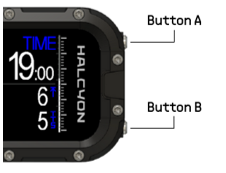
During a dive, the buttons function as follows:
- Short push button A to toggle between different screens
- Long push button A to access the menu.
- Short push button B to toggle the custom field.
- Long push button B to perform the custom function set in MENU → SYSTEM → CUSTOM FUNC.
- Long push both buttons simultaneously to confirm a warning / alarm
Menu Operation
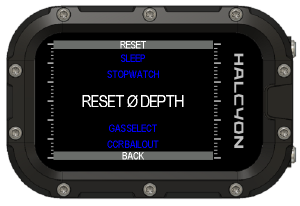
The SYMBIOS HANDSET has an intuitive menu which allows you to change settings quickly.
- Press and hold button A to access the menu.
- Press and release button A or B to navigate in a menu or to increment or decrement a setting.
- Within the menu, the long press functions of both buttons are indicated in boxes on the top and bottom of the menu.
- Press and hold button A to perform the function indicated on top of the menu.
- Press and hold button B to perform the function indicated on the bottom of the menu.
Before Diving
On the surface, the SYMBIOS HANDSET is usually in standby mode to minimize power consumption. In standby mode, a fully charged battery can last as long as long as six months. However, you should plan to supply a maintenance charge with long-term storage. Press and release either button A or B to activate the device.
In the image above, the top line of the surface screen displays the maximum depth of the last dive as well as the duration of the last dive. The compass tape is presented below the first line. The information for the gas used on the last dive is displayed on the third line on the left side; the Surface Interval (SI) is indicated on the right side. The pressure of the breathing gas is displayed on the bottom line; the ascent rate indicator is displayed on the bottom right.

In the image above, the top line of the surface screen displays the maximum depth of the last dive as well as the duration of the last dive. The compass tape is presented below the first line. The information for the gas used on the last dive is displayed on the third line on the left side; the Surface Interval (SI) is indicated on the right side. The pressure of the breathing gas is displayed on the bottom line; the ascent rate indicator is displayed on the bottom right.
Charging and USB Connection
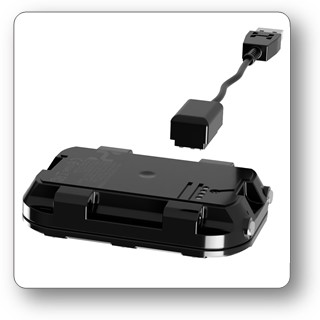
The SYMBIOS HANDSET features a USB port which is also used for charging.
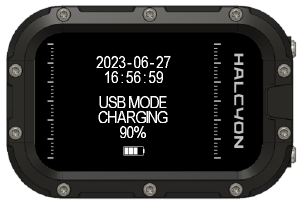
If the SYMBIOS HANDSET is plugged in, a charging screen will be displayed. You may charge the SYMBIOS HANDSET using a variety of power sources: a USB outlet from a PC, a USB charger, or a power bank, for example. If connected to a PC, the SYMBIOS HANDSET will also appear as a removable drive on the PC and can be accessed like a USB drive.
- If the battery indicator flashes red during a dive, this is a sign that the battery level is low and the dive computer may soon switch off or perform a reset. After a reset, dive data, depth, dive time, and decompression obligations are incorrect.
- Do not dive when the SYMBIOS HANDSET battery indicator is red. The dive computer might run out of battery. In such a case, the SYMBIOS HANDSET may give incorrect depth readings, incorrect decompression data, or may shut off completely. In case of a red battery indicator, recharge the SYMBIOS HANDSET before the next dive.
- Never fully discharge the SYMBIOS HANDSET as this might lead to damage of the lithium ion rechargeable battery.
- If the battery is completely discharged, the dive computer may reset and lose all decompression information. If reset occurred between repetitive dives, be aware that the SYMBIOS HANDSET loses decompression data and compartment inert gas pressure data from previous dives; thus, no decompression readings and none of the decompression calculations for following dives should be considered correct.
- After a dive, before connecting the cable, rinse the SYMBIOS HANDSET in freshwater. Make sure that the USB connector is clean and dry before connecting the USB cable.
- Do not disassemble or remodel any cables or connectors. Use only the original USB cable supplied with the SYMBIOS HANDSET. Check compatibility before use.
- Use only a clean and dry USB cable. Clean and dry the connector surfaces of the cable.
- If the SYMBIOS HANDSET is completely discharged, let it charge for at least three hours before using it.
- Before using SYMBIOS HANDSET for the first time, charge it for at least three hours.
- The nominal output of the USB outlet/charger should be 5V and should be able to provide at least 500 mA electrical current.
Selecting the Dive Mode
The SYMBIOS HANDSET supports several dive modes:
- OC: Open Circuit diving
- CCR: Closed Circuit Rebreather diving with a wireless connect to a rebreather (not on all models)
- CCR FSP: Closed Circuit Rebreather diving with fixed setpoint
- SIDEMOUNT: Sidemount diving
- BOTTOM TIMER
To select a dive mode:
- Long push button A to enter the menu
- Short push button A or B to navigate to menu item SETTINGS
- Long push button A to enter the SETTINGS menu
- Long push button A to enter the DIVE MODE menu
- Short push button A or B to navigate to go to a dive mode
- Long push button A to set the dive mode
Selecting a Gas
Divers can select a gas using the GAS SELECT menu item. Alternatively, divers can switch to the prompted gas during the dive by pressing and holding button B. For this option to be available, divers must select BEST GAS as the custom function of button B. Any of the gases activated in the gas table can be selected.
To select a gas from one of the main screens:
- Long push button A to enter the menu
- Short push button B to navigate to menu item GAS SELECT
- Long push button A to open the GAS SELECT MENU
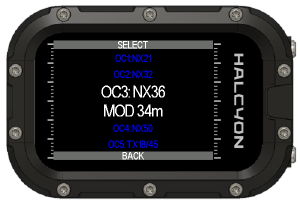
Within the GAS SELECT menu:
- Short push either button to navigate between five open circuit gas and three diluent gas settings
- Long push button A to select one gas setting. Long push button B to go back to the menu
- Only the gases that are activated can be selected. Activate a gas during the dive via the EDIT GASES menu item.
The MOD is calculated for each gas Within the GAS SELECT and the EDIT GASES menu. The calculation is based on the SETTINGS → OC PO2 DECO value.
Editing a Gas
To edit the contents of the gases in the gas table or to activate and deactivate gases, navigate to the EDIT GASES menu found in SETTINGS.
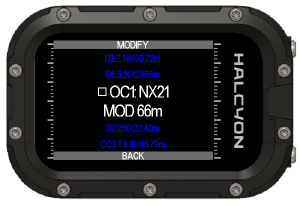
- Short push either button to navigate to the gas entry you want to modify.
- Long push button A to modify a gas entry.
- Long push button B to step back into the menu.
Inside the EDIT GASES menu: - Short push either button to navigate to the EDIT, ENABLE/DISABLE, or PRESET options in the MODIFY menu. - Long push button A to select the currently highlighted function in the center of the screen. Long push button B to return to the menu.
Editing Gas Fractions
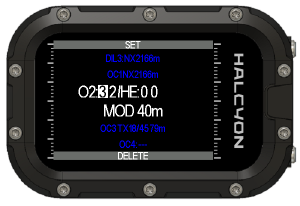
- To edit the fractions of a gas in the gas table, short push either button to increment or decrement a digit.
- Long push button A to set the digit and move to the next digit. Long push button B to delete the gas entry.
Enabling/disabling a Gas
Enable, disable, or select a gas from a pre-programmed gas library in the gas modification menu. Only enabled gases can be selected in the GAS SELECT menu.
Presets
You can also choose gas fractions from a preset gas library:
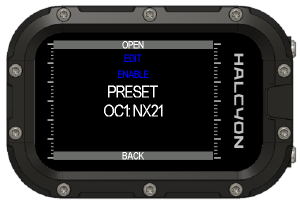
The following presets are available:
- TX10/85
- TX10/50
- TX15/55
- TX18/45
- NX21/35
- NX21 (AIR)
- NX32
- NX35
- NX50
- NX80
- NX99 (O2)
Custom Field
The lower left field on the screen is the custom field. In this field, different parameters can be displayed.
- Short push button B to toggle between different parameters.
Those parameters include:
| Handset | HUD | Unit | Description |
|---|---|---|---|
| AVG | AVG | m or ft | Average depth |
| BAT | BAT | % | Battery State of Charge |
| CNS | CNS | % | CNS |
| TEMP | TEMP | °C or °F | Temperature |
| ASC | ASC | m/min | Ascent speed |
| COMP | COMP | ° | Compass heading |
| GF NOW | GF N | % | Current Gradient Factor |
| GF SUR | GF S | % | Gradient Factor if the diver instantaneously surfaces |
| GD | GD | kg/m³ | The density of the breathing gas |
| DIL PO2 | D PO2 | bar | CCR diluent pO₂ |
| SP | SP | bar | CCR setpoint |
| CEIL | CEIL | m or ft | The depth ceiling that the diver can ascend to without depth rounding |
| TTS+5 | TTS+5 | min | The projected Time to Surface if the diver remains at the same depth for another five minutes |
| LAMP SOC | L SOC | % | State of charge lamp |
| LAMP RRT | L RRT | min | Remaining run time lamp |
| SGC | SGC | bar/min | Surface Consumption Rate |
| RGT | RGT | min | Remaining gas time |
| BDY BAR/PSI | B GAS | bar or PSI | Buddy gas |
| DIST DPV | D DPV | — | Distance DPV |
| VEL DPV | V DPV | — | Velocity DPV |
| RRT DPV | R DPV | min | Remaining run time DPV |
| BAT DPV | B DPV | % | State of charge DPV |
| NO FLY | NF | hh:mm | No flight time |
| PO2 | PO2 | bar | Partial pressure of oxygen in the diluent at the current depth |
| FO2 | FO2 | bar | Fraction of oxygen currently in the CCR breathing loop |
| SCRUB | SCRUB | s | Usable time remaining of the CO₂ absorbent material in a CCR |
| DATE / TIME | DATE / TIME | — | Time / date |
| BAT O2 | B O2 | % | State Of Charge Greenflash sensor |
| BAT CC | B CC | % | State Of Charge Symbios CCR |
| CO2 | CO2 | ppM | CO₂ content of the breathing gas |
| NX, TX or CC | NX, TX or CC | bar or PSI | Tank Pressure (white if active gas, otherwise blue). CC in case of a diluent gas. |
| T1-4 | T1-4 | bar or PSI | Tank Pressure of Tank Pods paired with T1..T4 |
| TRIM | TRIM | ° | Diver’s trim |
| ALT | ALT | m or ft | Altitude |
Custom values displayed in the custom field can be enabled/disabled in:
Short press button B to toggle the custom field. After 60 seconds, the item in the custom field will automatically switch back to the preset field in
The availability of parameters depends also on the dive mode. For instance, CCR SP cannot be displayed, if the dive mode is set to open circuit (OC).
Custom Function
Press and hold button B to perform the predefined custom function. You can preset this custom function by navigating to
Custom Screens
- Short push button A to navigate between different screens
Additional screens can be enabled in
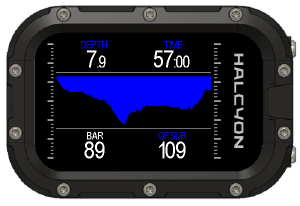
Depth Chart
The depth chart can be enabled in:
Gradient Factor Chart
The gradient factor chart can be enabled in:
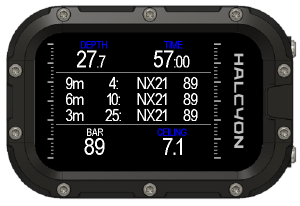
Deco Screen
The deco screen can be enabled in:
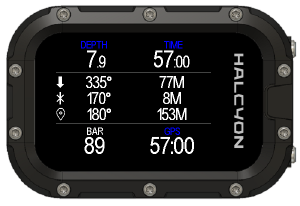
GPS Screen
The GPS screen can be enabled in:
Buddy Screen
The buddy screen can be enabled in:
DPV Screen
The DPV screen can be enabled in:
Wireless Screen
The Wireless screen can be enabled in:
Deco Layout
Decompression information is displayed on the lower right field of the dive computer. Different layout can be selected in:
Pairing to Wireless Devices
Wireless Interface
The SYMBIOS HANDSET features an innovative wireless receiver capable of receiving data from multiple sources. Those include for instance:
- SYMBIOS Tank Pod
- SYMBIOS pO2 Transmitter
- SYMBIOS CM ECCR
- SYMBIOS GPS Buoy
- SYMBIOS DPV interface
Pairing to wireless devices is done in
All pairings can be reset in:
SYMBIOS Tank Pod
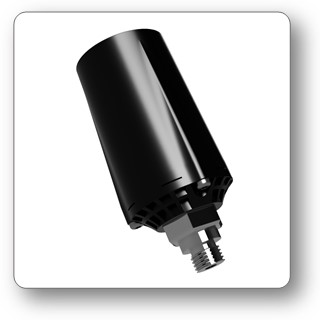
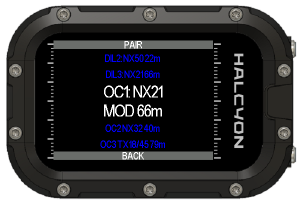
Pairing a SYMBIOS Tank Pod with Gas in the Gas Table:
- Install the SYMBIOS Tank Pod on a first stage. The SYMBIOS Tank Pod is suitable for tank pressures up to 300 bar.
- Attach the first stage to the tank and open the tank valve.
- Wait approximately 15 seconds for the transmitter to switch on.
- The SYMBIOS HANDSET and the SYMBIOS Tank Pod should be in close proximity (ideally <40 cm/16 in).
- Navigate to
➔menu➔SETTINGS➔PAIRING➔TANK POD➔TO GAS - Short-press either button to navigate and select the gas entry that the SYMBIOS Tank Pod should be paired with.
- Long push button A to select a gas entry.
- Long push button A to start pairing.
If the pairing process is successful, the tank pressure will be shown.
If you do not want to pair a Tank Pod to a Gas in the Gas Table, you can also pair it independently of the gas table to T1, T2, T3 or T3:
A SYMBIOS Tank Pod can only be paired with one entry in the menu. It needs to be unpaired before pairing an already paired transmitter with a new gas entry.
Even when using a Symbios Tank Pod Pod, always use a backup tank pressure gauge. Check the backup tank pressure gauge at regular intervals.
SYMBIOS CCR POD
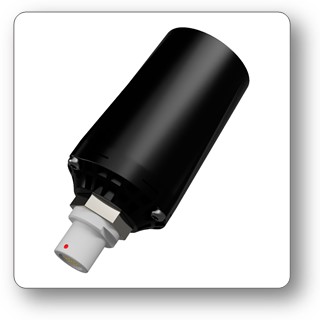
The wireless SYMBIOS CCR POD allows to connect to rebreathers with for instance Fischer connectors, AK4 Pin analog interface, AK5 Pin CAN interface.
- Activate the CCR Pod (see separate manual for the CCR PODs)
- Navigate to
➔menu➔SETTINGS➔PAIRING➔CCR INTERFACE - Press and hold the top button to start pairing.
After pairing to a CCR POD, it is required to calibrate the pO2 Sensors.
For further information please refer to the manual of the CCR POD.
SYMBIOS ECCR
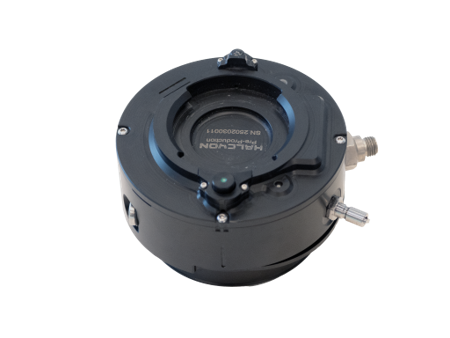
To pair the SYMBIOS HANDSET with a SYMBIOS CM ECCR:
- Turn on the SYMBIOS CM ECCR
- Navigate to
➔menu➔SETTINGS➔PAIRING➔CCR INTERFACE - Press and hold the top button to start pairing.
For further information please refer to the manual of the SYMBIOS CM CCR.
SYMBIOS Trim Sensor
The SYMBIOS Tank Pod is equipped with a high-resolution, 3-axis accelerometer, which allows assessment of diver trim. After pairing a SYMBIOS Tank Pod, pair the trim sensor to either a gas entry in the gas table or an entry from the number table.
- Ensure the SYMBIOS Tank Pod is pressurized and transmitting tank pressure data.
- Navigate to
➔menu➔SETTINGS➔PAIRING➔TRIM SENSOR - Press and hold the top button to start pairing.
Calibrating the Compass
To perform a compass calibration, navigate to
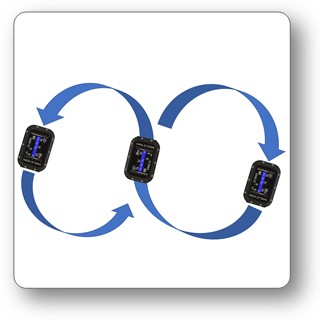
After the calibration, check the compass heading. If the compass heading is incorrect, recalibrate the SYMBIOS HANDSET. If the compass heading is still incorrect, there may be magnetic disturbances at your location. Go to a different location (outside a building and distant from electric power lines) and recalibrate the SYMBIOS HANDSET.
Calibrating the Trim Sensor
A 2 step calibration is required after pairing the trim sensor and each time the orientation of the SYMBIOS Tank Pod is changed with respect to the tank.
Horizontal Calibration:
- Pressurize the SYMBIOS Tank Pod and lay down the diving tank on its back.
- Navigate to
➔menu➔SETTINGS➔TRIM SENSOR➔HORIZONTAL - Long push button A to perform the horizontal calibration.
Vertical Calibration:
- Orient the tank vertically with the valve up.
- Navigate to
➔menu➔SETTINGS➔TRIM SENSOR➔VERTICAL - Long push button A to perform the vertical calibration.
Diving
The SYMBIOS HANDSET can be used for recreational or technical diving. It is possible to use it for air, NITROX, or TRIMIX open circuit diving and closed circuit rebreather diving with a constant pO2 setpoint. The SYMBIOS HANDSET can also be used as a communication hub for the SYMBIOS CCR, offering live pO2 sensor monitoring and information on the operating status of the rebreather. The SYMBIOS HANDSET also offers support for sidemount diving (paired with SYMBIOS TANK PODS) and can operate in Bottom Timer mode, where no decompression calculations are performed.
Dive mode is automatically activated as soon as the diver reaches a depth >1 m/3 ft. After surfacing and after a two-minute timeout, surface mode is activated. You can adjust the time interval to enter surface mode.
Information is displayed on different screen.
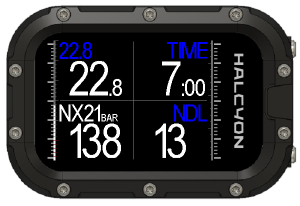
The main screen shows the most important information. In this example, the diving depth is 22.8 m, the max depth was 22.8 m (blue font), the dive time is 7 min, the current no decompression limit NDL is 13 minutes. The custom field in the lower left corner shows the currently selected gas (Nitrox 21) and the tank pressure. The left bar graph represents the tank pressure. The right bar graph represents the ascent speed.
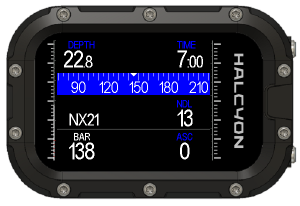
The second screen is more detailed and features also a compass scale and the ascent parameter.
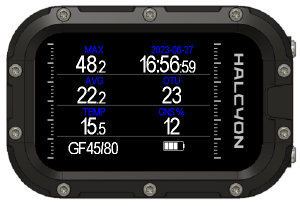
The third screen shows max depth, time and date, average depth, OTU, temperature, CNS %, Gradient Factor Setting and a battery charge indicator.
OC Diving with Air
The OC diving mode is set in
This is the main screen during a dive with air (breathing gas NX21). The current depth is 22.8 m and the dive time is seven minutes. The remaining no-decompression limit is 13 minutes. The remaining tank pressure is 138 bar. The bar graph on the left side visualizes the tank pressure. The range of the bar graph is 0 to 300 bar. The bar graph on the right side displays the ascent speed (range 0 to 18 m/0 to 59 ft per min).
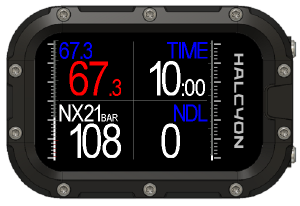
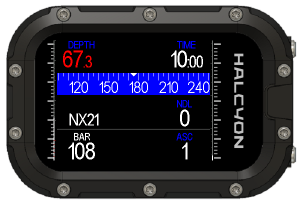
The remaining no-decompression limit is 0 minutes, and the remaining tank pressure is 108 bar.
When the pO2 of the breathing gas exceeds 1.6 bar/ATA or the maximum allowable pO2 set by the diver, the depth indicator will blink white and red. Set the maximum pO2 for the bottom gas in
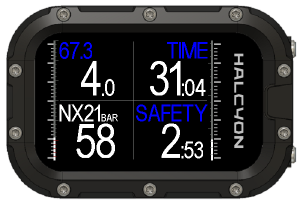
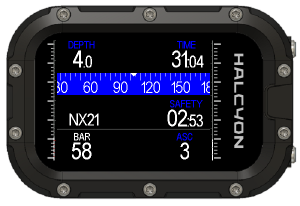
In this example, the tank pressure is 45 bar. If the tank pressure falls below 50 bar, the pressure value will blink red and white. The safety stop timer is also displayed.
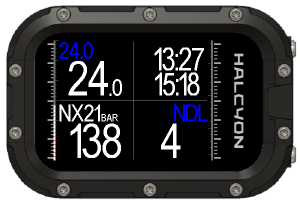
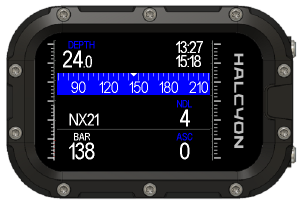
The stop watch can be started and reset in
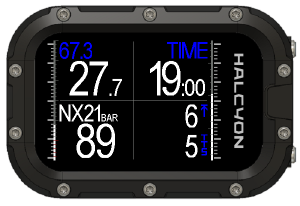
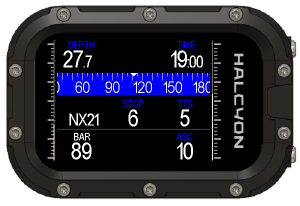
You may exceed the no-decompression limit during your dive. In this case, the SYMBIOS HANDSET will also display the decompression stop depth and the time to surface. In this example, the decompression stop depth is 6 m, and the estimated time to surface is five minutes. The current ascent rate is 10 m/min (bar on the right side, scale from 0 to18 m/0 to 59 ft per min maximum).
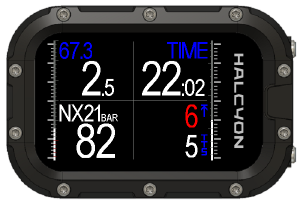
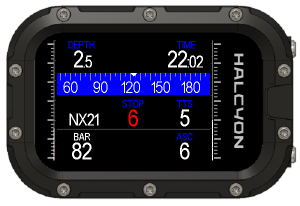
If you violate the current decompression stop depth, the current decompression stop depth will blink white and red.
At the end of the dive, when there are no further decompression obligations, the SYMBIOS HANDSET proposes a three-minute safety stop at a depth between 3 and 5 m/10 to 16 ft. The safety stop timer counts from 3 minutes to 0, as long as you are at a depth between 3 and 5 meters. If you descend again to 10 m/30 ft depth or more, the safety stop counter will be reset to 3 minutes. The safety stop indicator can be enabled/disabled in
An additional Deco Screen can be enabled in:
In the top row, the deco screen shows the current depth and dive time. The next three deco stops are shown in the middle section of the screen together with the best available gas for the stop depth (and its pressure if a tank pod is paired to the gas). The bottom row shows the custom field selected information on the left and the ceiling depth on the right. Ceiling is the unrounded minimum depth that you can ascend to while still respecting the selected Gradient Factors.
OC Diving with Nitrox
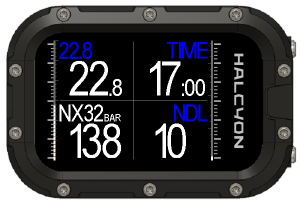
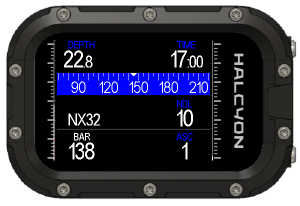
The current breathing gas is indicated in the lower left field. In this example, the current breathing gas is NITROX NX32, containing 32% O2, and 68% N2. The remaining tank pressure is 138 bar.
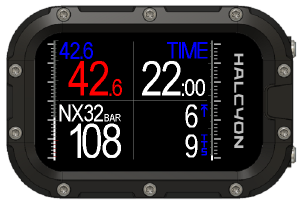
When the pO2 of the breathing gas exceeds 1.6 bar/ATA or the maximum allowable pO2 set by the diver, the depth indicator will blink white and red. Set the maximum pO2 for the bottom gas in
OC Diving with Trimix
Diving with Trimix usually requires bottom and deco gases.
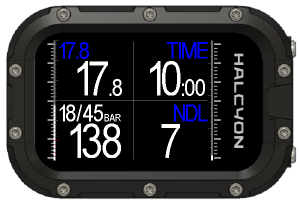
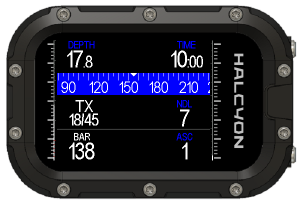
In this example, the current breathing gas is set to TRIMIX 18/45, containing 18% O2, 45% He, and 37% N2. the remaining No Decompression Limit NDL is 7 min.
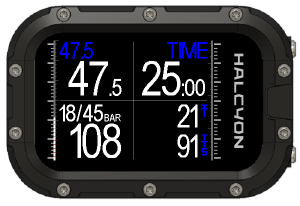
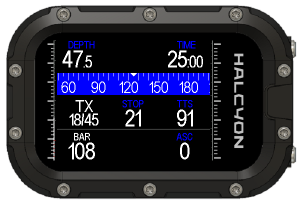
After 25 minutes bottom time, the deepest Deco Stop Depth is 21m and Time To Surface is 91 min.
An additional Deco Screen can be enabled in:
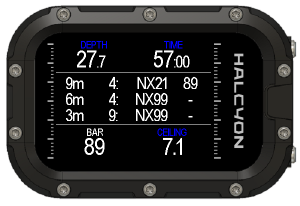
In this example, two gases are used: Air as bottom gas and NX99 (O2) as decompression gas. In the top row, the deco screen shows the current depth and dive time. The next three deco stops are shown in the middle section of the screen together with the best available gas for the stop depth (and its pressure if a tank pod is paired to the gas). The bottom row shows the custom field selected information on the left and the ceiling depth on the right. Ceiling is the unrounded minimum depth that you can ascend to while still respecting the selected Gradient Factors. The remaining pressure of the Air tank is 89 bar. In this example, no tank pod is mounted on the decompression tank, thus no tank pressure information is available.
Gas Switches
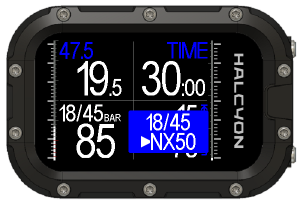
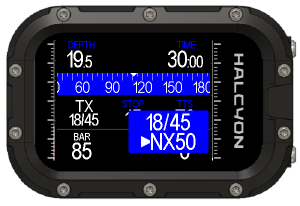
To accelerate decompression, you can use different gas mixes. One gas frequently used for decompression is NITROX 50 (NX50). Before the dive, set the gas table according to the gases you plan to use during the dive (menu→GAS TABLE). The SYMBIOS HANDSET will automatically calculate the best gas for the current depth based on the max pO2 selected by you. If the currently selected gas differs from the best, a popup field will prompt you to switch gases. In this example, the currently selected gas is TRIMIX TX18/45. Based on the active gases stored in the gas table, the SYMBIOS HANDSET proposes NX50 as the best gas. After performing the gas switch, select the correct breathing gas. There are two possible ways to select the best gas:
- Select NX50 in
➔menu➔SETTINGS➔GAS SELECT - Long push button B to select the best gas. This, however, requires that the custom function for Press and Hold button A is set to BEST GAS in
➔menu➔SYSTEM➔CUSTOM FUNC➔BEST GAS
CCR Diving
This diving mode is not supported by the blue model of the SYMBIOS HANDSET
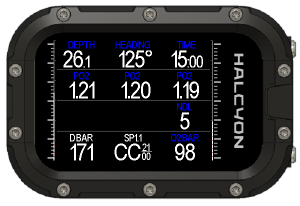
This is a typical example of the main screen during a CCR dive with air as diluent (NX21). The SYMBIOS HANDSET indicates the current average pO2 of the sensors, the diving mode (CC), and the diluent used.The right bar graph indicates the tank pressure of the O2 tank (98 bar). The left bar graph indicates the diluent pressure. In this example, the sensor readout is 1.21, 1.2, and 1.19 bar. The SYMBIOS HANDSET is in closed-circuit mode and the selected pO2 setpoint is 1.1 bar. The right bar graph indicates the tank pressure of the O2 tank (98 bar). The left bar graph indicates the diluent pressure. The left the diluent pressure readout is indicated on the bottom of the screen.
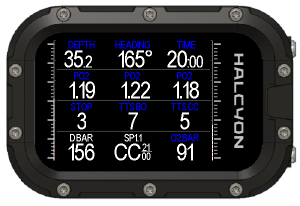
If the no-decompression limit is exceeded, the SYMBIOS HANDSET indicates the decompression stop depth (in this example, 3 meters), the estimated time to surface (5 minutes in closed circuit (CC) mode and 7 minutes) in bailout mode (BO).
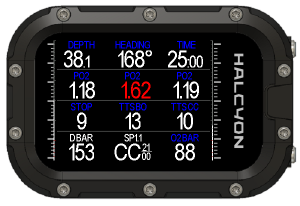
If a pO2 sensor reads a value above 1.6 bar, the value will blink white and red.
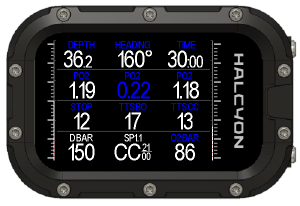
If a pO2 sensor is reading a value below 0.3 bar pO2, the value will blink red and blue.
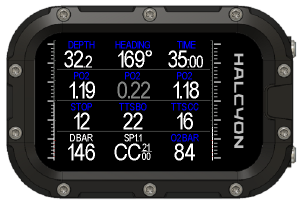
If a pO2 sensor is showing incorrect values, it can be excluded from the deco calculations. Sensors can be enabled/disabled from deco calculations in
- If sensor data are not available, then the SYMBIOS HANDSET displays -- instead of a number.
Setpoint Switch
Setpoint switches on the SYMBIOS ECCR are done on the button on the CCR Head. When using a CCR POD, you can switch between different Setpoints and Bailout by a long push of button B.
Bailout
Switching to bailout mode is done either: - automatically, on the SYMBIOS CCR, when the BOV is turned into OC position - manually, by a long push of button B
Moreover, Bailout mode can also be set manually in
CCR FSP Diving
Use this mode, if you are rebreather diving and you are using the SYMBIOS HANDSET to do decompression calculation without O2 sensor readout.
The CCR FSP mode can be used for closed circuit diving with a fixed pO2 setpoint. This is the preferred mode when the SYMBIOS HANDSET is not paired with a CCR. In this mode, divers can pair the dive computer with tank transmitters for O2 as well as diluent.
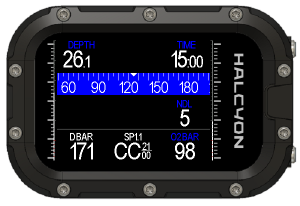
This is an example of the screen during closed circuit diving with a fixed setpoint. The selected setopint is 1.1 bar. The diluent gas is air. The left bar graph indicates the tank pressure of diluent (171 bar), and the right bar graph indicates the tank pressure of the O2 tank (98 bar). Tank pod pressure transmitters are required to indicate the pressure of both oxygen and diluent gases.
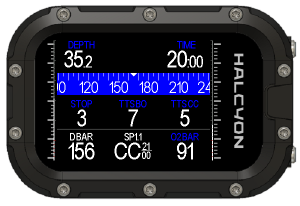
If the no-decompression limit is exceeded, the computer indicates the decompression stop depth (in this example, 3 meters), the estimated time to surface (5 minutes) in closed- circuit (CC) mode, and the estimated time to surface (7 minutes) in bailout mode (BO). The closed-circuit time to surface estimate is based on the current pO2 setting. Bailout time to surface estimation is based on the enabled gases in the gas table.
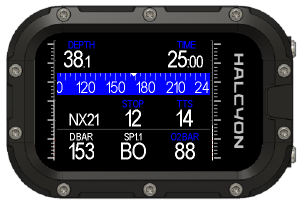
Example of a screen during open circuit bailout.
- Long push button B to cycle between CC and BO mode, Low Setpoint, and High Setpoint.
Compartment on/off gassing and decompression forecases are based on the current selected setpoint and mode (CC or bailout).
Bottom Timer
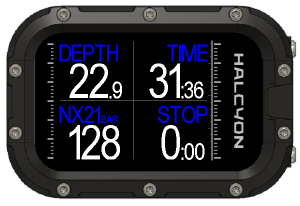
This is an example of the bottom timer screen. The top fields show depth and dive time. The right field in the second row shows the stopwatch. The left field in the second row can be toggled between different values:
- Short push button B to toggle the custom field
- Long push the lower button to start/reset the stop watch
In bottom timer mode, the SYMBIOS HANDSET does not perform decompression calculations.
Within 24h after diving in bottom timer mode, it is not possible to change the dive mode.
Sidemount Diving
The sidemount diving mode is used for diving with more than one sidemount tank. For sidemount diving with just one tank, open circuit diving mode is the preferred mode.
The left tank is the first gas entry in the gas table. The right tank is the second gas entry in the gas table. The left tank transmitter needs to be paired with the first entry in the gas table. The right tank transmitter needs to be paired with the second entry in the gas table.
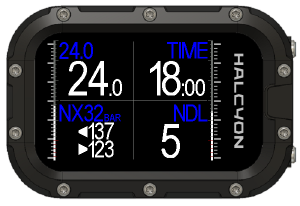
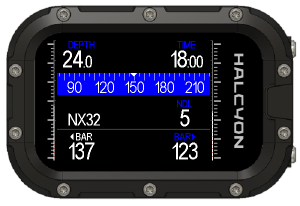
This sample screen shows a depth of 24 meters and 18 minutes of dive time. The remaining no decompression limit is 5 minutes. In this example, the remaining tank pressure of the left tank is 137 bar, and the remaining tank pressure of the right tank is 123 bar. Both pressure values are also visualized with the left and right bar graph.
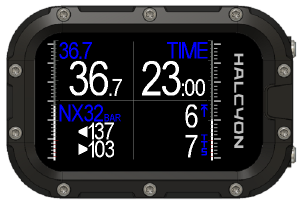
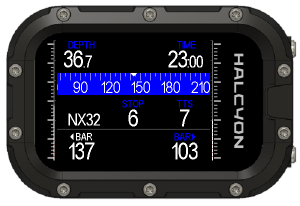
This sample screen shows a depth of 36.7 meters and 23 minutes of dive time. The current time to surface is 7 minutes, and the next deco stop is at 6 meters.
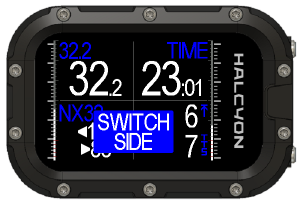
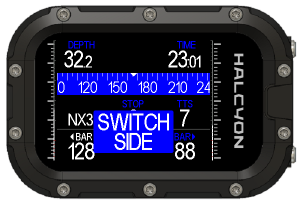
If the difference of the tank pressure between the two sidemount tanks is greater than 30 bar, you will be notified with a popup window.
A popup message will notify you of a pressure difference greater than 30 bar between the two sidemount tanks.
This function is only available, however, when the fraction of the two gases is the same and no decompression gas is carried.
Navigation
Inbuilt Compass
The SYMBIOS HANDSET features an inbuilt tilt compensated electronic compass.

Examples above show the compass scale in OC mode and in CCR Fixed Setpoint mode.
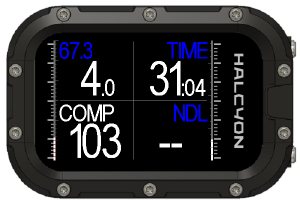
On screens without compass scale, it is possible to view the heading in the custom field.
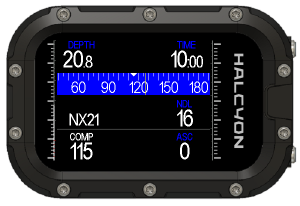
In
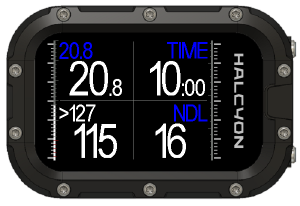
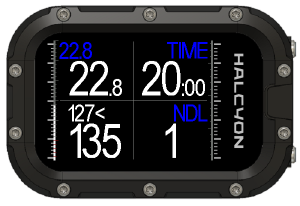
In fields with numeric representation of the heading, two arrows direct you towards the selected heading.
Waypoint
For more information about navigating with GPS Waypoints, please refer to the manual of the GPS buoy.
Body Compass
This function is only available in the Tactical Model of the SYMBIOS HANDSET
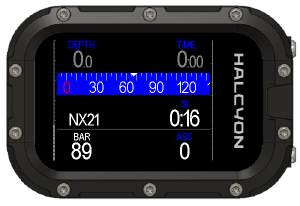
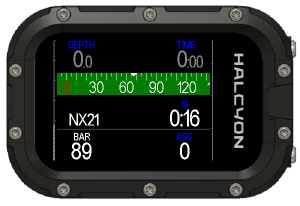
The SYMBIOS HANDSET switches automatically between inbuilt compass and external Body Compass (patented). If the diver is in +-45° Trim, the heading of the external body compass is displayed.
For more information, please refer to the manual of the body compass.
Alarms and Notifications
- Push and hold both buttons to confirm an alarm and deactivate a pop up message or vibration alarm.
- If new potentially dangerous situations occur, vibration alarms will be triggered even if previously a vibration alarm was confirmed.
General Pop Up Messages
Potentially dangerous parameters are highlighted with blinking colors. Additionally, pop up messages notify you of dangerous situations.
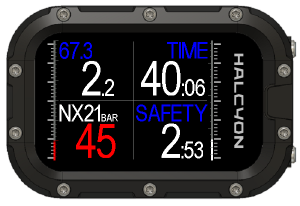
Tank pressure is too low: In this example, the tank pressure is below 50 bar and is blinking red and white.
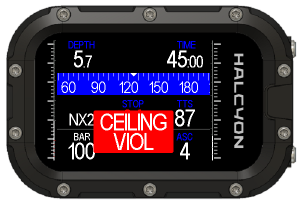
Decompression ceiling violation: The ceiling value will blink white and red and a pop up warning will be visible.
Gas MOD exceeded: If the selected pO2 for the gas is exceeded, the depth value will blink white and red.
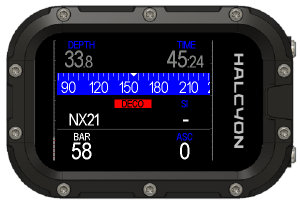
Decompression was not completed or ceiling was violated.
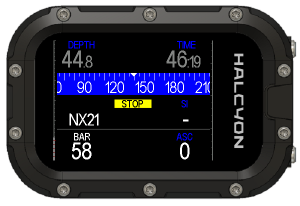
Safety stop was incomplete.
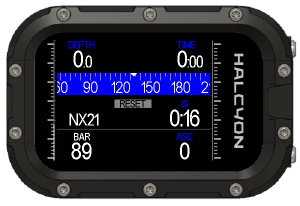
Tissues saturation reset: If the user performs a tissue saturation reset, a warning will appear while on the surface.
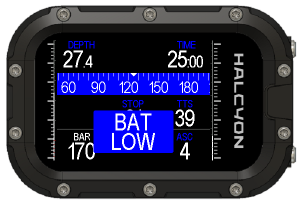
Battery low: When the battery level of the SYMBIOS HANDSET is below 15%, a battery low warning alert will appear.
Sidemount Pop Up Messages
SWITCH SIDE will appear as a pop up if the tank pressure between left and right tank differs by more than 30 bar.
CCR Alarms
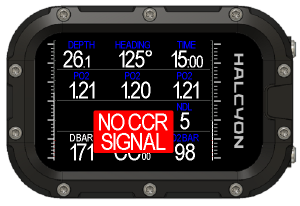
No CCR Signal was received.
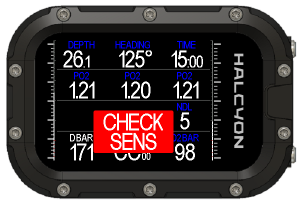
CHECK SENS will pop up when the controller and sentinel read pO2 values which differ by more than 0.1 bar.
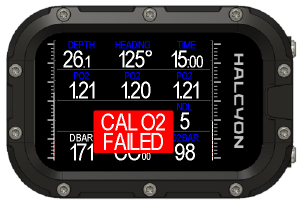
The last calibration has failed.
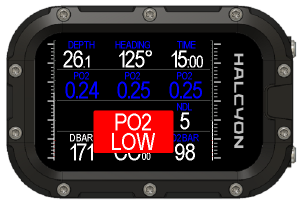
The pO2 of the gas in the breathing loop is too low.
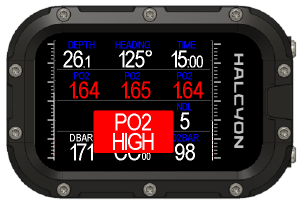
The pO2 of the gas in the breathing loop is too high.
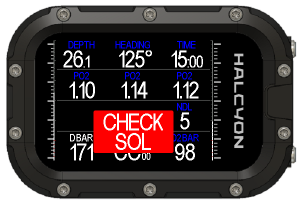
The solenoid may be malfunctioning.
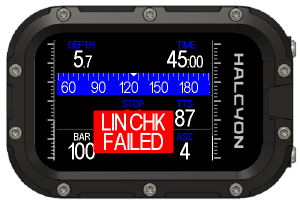
The linearity check, which is part of the calibration of the SYMBIOS ECCR, has failed.
CCR Notifications
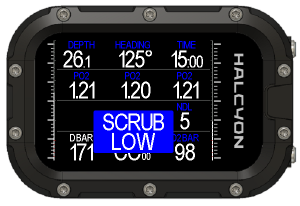
The scrubber stack timer has expired.
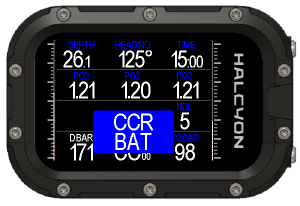
The battery of the CCR controller is low.
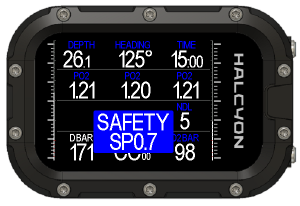
The CCR controller has switched to safety setpoint.
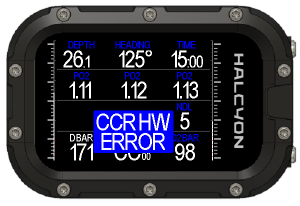
There is a hardware error. A service might be required.
There battery of the GREENFLASH sensor is low.
Vibration Alarm
The SYMBIOS HANDSET features an integrated vibration motor to alert you of potentially dangerous situations.
- Tank pressure below 50 bar: One vibration signal every 24 seconds
- Tank pressure below 25 bar: One vibration signal every 8 seconds
- Ceiling violation: One vibration signal per second
- pO2 too high or too low: One vibration signal per second
- Do as Gas Switch: One vibration signal every 24 seconds
- Sidemount mode, switch tanks: if the tank pressure difference between the two tanks is greater than 30 bar, one vibration signal every 24 seconds
Vibration alarms can be enabled/disabled in
End of Dive Detection
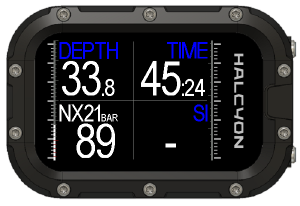
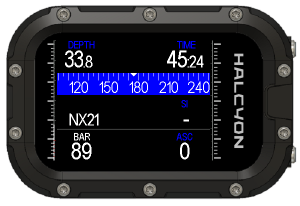
After surfacing and a timeout of 2 minutes, the SYMBIOS HANDSET will switch to surface mode.
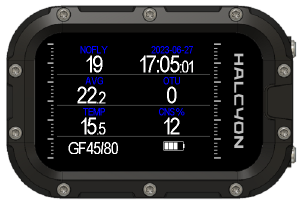
On the surface, the auxiliary screen shows additional data including the NO FLY timer and the current time and date. The second and third rows show data from the last dive including average depth, OTU, minimum water temperature, and the current CNS% loading. The bottom row shows the current Gradient Factor setting and the remaining battery capacity. The NO FLY timer is also displayed on the custom information field on the main screen.
Decompression was not completed or ceiling was violated.
Safety stop was incomplete.
Algorithms
Decompression Model
The SYMBIOS HANDSET calculates no decompression times and decompression stops, depth and duration with a mathematical decompression model, which estimates the inert gas uptake and release during diving. The decompression model in the SYMBIOS HANDSET uses the Buelhmann ZH-L16C dataset. The model uses 16 hypothetical compartments for Nitrogen and 16 for Helium to estimate the inert gas loadings of the tissues of the body during a dive.
Gradient Factors
The popular gradient factor (GF) concept allows customization of the algorithm. The gradient factor concept allows reducing the maximum allowable compartment gas loading to a percentage of the maximum allowable loading according to the original Buehlmann ZH-L16 model. In other words, a gradient factor below 100, results in shorter no decompression times, longer decompression schedules and is more conservative than the original algorithm.
There are two gradient factors. Gradient Factor High (GF High) limits the maximum allowable compartment tissue on the surface. Gradient Factor Low is only relevant for decompression diving. It reduces the maximum allowable compartment gas loading at depth. A short GF Low setting results in deeper decompression stops.
The Gradient Factors can be set in:
The gradient factor chart can be enabled in:
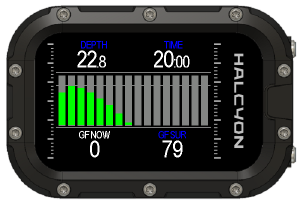
In the Gradient Factor Chart, you can monitor the gas loading of the 16 compartments of the decompression model in real time. The fastest compartment of the model is represented in the far left of the screen while the slowest compartment is on the far right of the screen. In the example above, the loading of the compartment has not exceeded the Gradient Factor High set by you (all the tissues are green in color). The GF High limit is represented by the line at the top of the screen in the example above. On the lower right side, the GF surface value is displayed.
As you remain at depth, some of the compartments have exceeded the Gradient Factor High that you set. The compartments that have exceeded the limit are represented in red. The GF High limit is represented by the line in the middle of the screen in the example above.
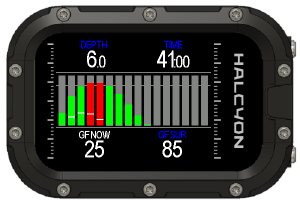
During the ascent and the required decompression stop, the compartments are off-gassing. Given enough time, some of the compartments will fall below the selected Gradient Factor High (represented in green) while other compartments will require more time to off-gas (represented in red). The GF High limit is represented by the line near the top of the screen while the GF Now value is represented by the short white line within each compartment bar.
OC Diving
In open circuit diving on- and off-gassing of the compartments is based in the selected gas. Deco schedule and TTS forecast is based on all enabled open circuit gases.
CCR Diving
In closed circuit diving, on- and off-gassing is based on the current setpoint and the selected diluent. 3 modes can be selected for TTS and Deco stop forecast:
- LOOP PO2: The current pO2 of the breathing loop is used for Deco schedule and TTS forecast.
- SETPOINT: The currently selected setpoint is used for Deco schedule and TTS forecast. When using the SYMBIOS CCR in AUTO Setpoint mode, the deco schedule and TTS forecast will be depth based on: constant fraction of O2 from surface to 12m depth, and constant pO2 at a depth exceeding 12m.
Safety Stop
If the max depth was deeper than 10 m, a 3 min safety stop timer is displayed. - the safety stop timer is count down in a depth zone between 3 m and 6 m. - when descending deeper than 10 m, the safety stop timer is reset to 3 min
Gas Consumption
If a SYMBIOS tank pod is paired to the SYMBIOS HANDSET, gas consumption metrics can be displayed in the custom field.
- Enable the gas functions metrics in
- GC: is the current Gas Consumption in bar/min
- SCR: is the Surface equivalent gas Consumption Rate in bar/min. At sea level, tis is equivalent to the Gas Consumption divided by the ambient pressure at the current depth.
- RGT: this is the Remaining Gas Time in minutes at the current depth.
- Surface Air Consumption can be calculated by multiplying SCR with the tank size. For instance, if you have a SCR of 2 bar/ min and you are using a 10 L tank, SAC would be 20 L/min.
- All Gas Consumption metrics are based on the gas consumption history of the last minute. Thus within the first minute of diving as well as after a gas switch, no Gas Consumption metrics are available for a period 60 s.
Specifications
General
- Maximum operational depth: 120 m/394 ft
- Full color transflective sunlight readable TFT Screen, 320x240 pixel, RGB
- Digital Pressure Sensor, 300 m/984 ft rated
- Depth resolution: 0.1 m/4 in
- Temperature resolution 0.1 °C/32 °F
- Digital compass, tilt compensated
- 2 channel magnetic wireless interface,125 kHz
- BT5.0 interface
- USB interface
- Housing made from glass fiber reinforced polyamide
- The depth of equipment certification according to EN250:2014 is 50 m/164 ft.
- The air supply for equipment compliant with EN250:2014 shall meet the requirements for breathable air in accordance with EN 12021.
Decompression Algorithm
- Bühlmann ZH-L16C decompression model
- 16 compartments for nitrogen, 16 compartments for helium
- Gradient factors
- No-fly time indicator
- Automatic altitude adaptation
- 5 gas settings for open circuit diving
- 3 diluent gas setting for closed circuit diving
Electrical Specifications
- 32 bit microprocessor
- Rechargeable Li Ion battery, 4.2 V, 1000 mAh
- Rechargeable via USB, maximum charge current 350 mA
- Autonomy in standby mode: up to 1 year
- 25 hours (display brightness set to 5) operation during diving
- Charge time: 4 hours
- Interfaces
- Wireless receiver with dual orthogonal antennas, magnetic, 125 kHz
- BT5.0 interface
- USB interface
Dive Data Storage
- 32 GB storage capacity
- Dive data storage interval in dive mode: 5 seconds
- Memory accessible via USB ( SYMBIOS HANDSET is recognized as Mass Storage Device)
- Memory also accessible via wireless BT5.0 interface
Testing and Validation
The SYMBIOS HANDSET was tested according to various EU Normatives and has passed those tests. The SYMBIOS HANDSET is CE compliant. For more information, please see sections CE and FCC. In addition to many test dives in both salt water and fresh water, numerous simulated dives were carried out in the laboratory and in the hyperbaric chamber to validate the correct function of the computer and the correct implementation of the decompression model. The code was validated against Eric C. Baker’s implementation of the Buhlmann ZH-L16 algorithm with Gradient Factor extension. The SYMBIOS HANDSET, together with the SYMBIOS Tank Pod, were tested according to EN250:2014. Prior to shipment, every SYMBIOS HANDSET is tested for water and pressure resistance.
Care and Maintenance
The SYMBIOS HANDSET is built from high-quality, seawater-resistant materials. The SYMBIOS HANDSET is designed to withstand diving in harsh conditions. However, users should still protect the SYMBIOS HANDSET from shock, excessive temperatures, chemicals, and mechanical tampering.
- After diving, rinse the SYMBIOS HANDSET in fresh water to avoid corrosion.
- Before connecting the SYMBIOS HANDSET to a USB cable, ensure that the USB connector on the SYMBIOS HANDSET is clean and dry. Failure to do so may lead to corrosion of the contacts.
- Failure to observe the above precautions leads to loss of warranty and any product-related liability of HALCYON.
- Protect the SYMBIOS HANDSET during transportation and from mechanical shocks.
- Never try to open or repair the SYMBIOS HANDSET yourself. The SYMBIOS HANDSET does not contain any user serviceable parts. Service may only be done by HALCYON or by any authorized service center.
- The SYMBIOS HANDSET should be inspected for mechanical damage and cracks before and after each dive to ensure it is working properly.
Logbook
The SYMBIOS HANDSET stores dive data in 5s intervals. After a dive, the dives can be viewed directly on the device. Access the inbuilt logbook with
- Short push button A or B to navigate through the dives.
- Long push button A to see details of one dive
Dive data include depth, temperature and, in case of CCR diving, also the values of the pO2 sensors. Moreover, parameters like CNS %, OTU, minimum water temperature, etc. can be viewed by toggling the custom field with short push of button B.
Alternatively dive data can be viewed:
- in the Halcyon SYMBIOS app (available for Android and iOS mobile devices)
- in third party logbooks that are based on the libdivecomputer open source bluetooth library (https://www.libdivecomputer.org/)
- with spreadsheet programs like Excel. There is a *.csv file for each dive, which contains the dive data.
Deco Planner
The SYMBIOS HANDSET features an inbuilt deco planner.
Open Circuit Dive Planning
- First set up the dive computer to open circuit dive mode (OC)
- Choose and enable all gases that you want to use
- Set the respiratory minute volume in
➔menu➔PLANNER➔RMV - Set the depth in
➔menu➔PLANNER➔DEPTH - Set the bottom time in
➔menu➔PLANNER➔TIME - Start the planner with
➔menu➔PLANNER➔PLANNER
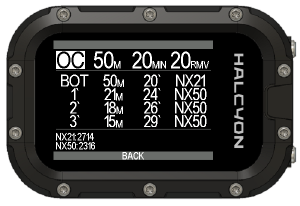
The deco planner shows you then a runtime table. It starts with the bottom phase. Next is the Ascent to the first stop or gas switch. The next entries are then the required deco stops. In the bottom part of the screen, the gas consumption for all enabled gases is shown.
- short push button A to switch to the next page
- The dive planner simulates ascents with an ascent rate of 10 m/min
- The dive planner starts with the current compartment saturation.
Closed Circuit Dive Planning
- First set up the dive computer to closed circuit dive mode (CCR)
- Select the diluent gas you want to use
- Choose and enable all bailout gases gases that you want to use
- Set the respiratory minute volume in
➔menu➔PLANNER➔RMV . This is required for the bailout calculation. - Set the pO2 setpoint in
➔menu➔PLANNER➔CCR SETPOINT - Set the depth in
➔menu➔PLANNER➔DEPTH - Set the bottom time in
➔menu➔PLANNER➔TIME - Start the planner with
➔menu➔PLANNER➔PLAN
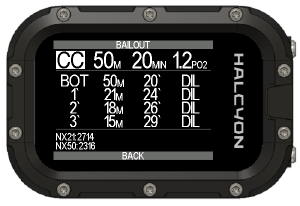
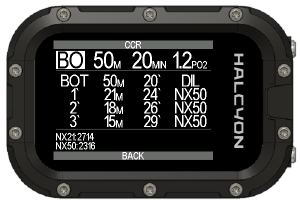
The deco planner shows you then a runtime table. It starts with the bottom phase. Next is the Ascent to the first stop or gas switch. The next entries are then the required deco stops. In the bottom part of the screen, the gas consumption for all enabled gases is shown.
- short push button A to switch to the next page
- long push button A to toggle between CCR and Open Circuit Bailout planner.
- The dive planner simulates ascents with an ascent rate of 10 m/min
- The dive planner starts with the current compartment saturation.
- The deco planner can be based either on a fixed setpoint of on AUTO setpoint. In AUTO setpoint, the auto pO2 control logic of the SYMBIOS CCR is used, where between 0 and 12m depth, an O2 fraction of 50% is used, and at greater depths, the pO2 setpoint is 1.1 bar.
Training Mode
The SYMBIOS HANDSET supports your dive training with a training mode. In training mode, it is possible to simulate decompression stops on (shallow) dives, where there is no real decompression obligation. This is helpful for:
- Training following a decompression schedule
- Training doing gas switches and tank handling
- Training of confirming the proposed gas switches on the the dive computer in a real dive
To use the training mode:
- Enable the training mode in
➔menu➔SYSTEM➔TRAINIG - Do a dive
- Select a simulation profile
➔menu➔TRAINING
The following profiles are available:
| Profile Nr | Depth | Bottom Time |
|---|---|---|
| PROFILE 1 | 40 m | 10 min |
| PROFILE 2 | 60 m | 10 min |
| PROFILE 3 | 40 m | 20 min |
| PROFILE 4 | 60 m | 20 min |
| PROFILE 5 | 40 m | 30 min |
| PROFILE 6 | 60 m | 30 min |
By selecting one of the training profiles, the a simulated compartment loading equivalent to the selected profile (depth and bottom time) is added to the current compartment loading. The SYMBIOS HANDSET displays then Ceiling, Decompression Stops, TTS and prompts you to do gas switches.
- To indicate that the dive computer is in training mode, decompression related parameters are displayed in yellow instead of white color
- Deco training mode is only available, if you have no real decompression obligation
- You can exit the training mode in
➔menu➔TRAINING➔RESET
Halcyon SYMBIOS App
The SYMBIOS HANDSET can be connected via BT to a mobile device (Android or IOS).
- Install the app on your mobile device
- Open the Halcyon App on your mobile device.
- Navigate Symbios icon at the bottom of your Halcyon app and click scan.
- Locate your device and select it.
- Enter the BT Code. The BT Code can be found in
➔menu➔SYSTEM➔SYSTEM INFO➔BT CODE
With the app, it is possible to:
- set up the SYMBIOS HANDSET
- simulate dives on your SYMBIOS HANDSET
- download dives and visualize dive data
- share dives with the community
Firmware Update
Complete the following steps to perform a firmware update:
- Connect the SYMBIOS HANDSET to your PC.
- The SYMBIOS HANDSET will be recognized as a mass storage device.
- Download the latest firmware.
- Unpack the firmware zip file
- Copy the files from the zip file to the mass storage device (the dive computer)
- Safely remove the mass storage device.
- Disconnect the SYMBIOS HANDSET from your PC.
The SYMBIOS HANDSET will then update with the new firmware.
Firmware updates can also be performed using the HALCYON Dive APP.
- The version of the firmware on your SYMBIOS HANDSET is shown in
- All decompression information and settings may be lost after a firmware update.
- Avoid a firmware update between repetitive diving. Performing a firmware update between dives will cause the SYMBIOS HANDSET to lose decompression data and the remaining compartment inert gas loadings from the previous dives; thus, the no-decompression times and decompression calculations for the next dives may be incorrect.
Notices
CE Compliance
The SYMBIOS HANDSET complies with:
- EN250:2014: The combination of a Halcyon SYMBIOS HANDSET and the Halcyon SYMBIOS Tank Pod is a personal protective equipment under the Regulation (EU) 2016/425. Polski Rejestr Statków S.A, al. Gen. Józefa Hallera 12680-416 Gdansk, Poland, Notified Body No. 1463 performed EU type-examination (Module B) of the Regulation (EU) 2016/425 Personal Protective Equipment and issued EU type-examination certificate Nr CW/PPER/73/08/2025. The EC Type examination of the SYMBIOS HANDSET together with the Halcyon SYMBIOS Tank Pod was conducted by Polski Rejestr Statków S.A, al. Gen. Józefa Hallera 12680-416 Gdansk, Poland, Notified Body No. 1463 . In this case, the SYMBIOS HANDSET is in conformity with EN250:2014 – respiratory equipment - open circuit self-contained compressed air diving apparatus – requirements, testing and marking – clause 6.11.1 Pressure Indicator for use with equipment that is compliant with EN12021. The air supply for equipment compliant with EN250:2014 shall meet the requirements for breathable air in accordance with EN 12021. The depth of equipment certification is 50 m/164 ft.
- The HALCYON SYMBIOS HANDSET or Symbios HUD in combination with the Halcyon SYMBIOS Tank Pod are subject to the conformity assessment procedure conformity to type based on the quality assurance of the production process plus supervised product checks at random intervals (Module D) under surveillance of the Polski Rejestr Statków S.A, al. Gen. Józefa Hallera 12680-416 Gdansk, Poland, Notified Body No. 1463
- EN13319 (European standard for depth gauges) Regulation (EU) 2014/53, Radio Equipment Directive
- EN 300 330:2017 V2.1.1 (Radio spectrum), Short Range Devices (SRD); Radio equipment in the frequency range 9 kHz to 25 MHz and inductive loop systems in the frequency range 9 kHz to 30 MHz; Harmonised Standard covering the essential requirements of article 3.2 of Directive 2014/53/EU. EN 55032:2015 + A1:2020 + A11:2020 (EMC), Electromagnetic compatibility of multimedia equipment
- Emission requirements
The full text of the EU declaration of conformity is available at https://halcyon.net/support under Instructions/Manuals > EU Declaration of Conformity Documents.
Trademarks
Halcyon® and the H logo® are registered trademarks of Halcyon Manufacturing, Inc. The Halcyon Cinch is protected by U.S. Patents Nos. 8,398,337 and 10,407,142 and a corresponding European Patent. Halcyon common law trademarks include, without limitation, Symbios™, Multifunction Compensator™, Cinch™, H-Lok™, X-Connector™, Eclipse™, Explorer™, and Evolve™ wings, BC Storage Pak™, Active Control Ballast™, Diver’s Life Raft™, Surf Shuttle™, No-Lock Connector™, Helios™, Proteus™, and Apollo™ lighting systems, Scout Light™, Pathfinder™ reels, Defender™ spools, and the RB80™ rebreather.
Oxygen Sceintific™ and Greenflash™ are registered trademarks of Oxygen Scientific GmbH.
Copyright
This manual is copyrighted, all rights reserved. It may not, in whole or in part, be copied, photocopied, reproduced, translated, or reduced to any electronic medium or machine readable form without prior consent in writing from Halcyon Manufacturing, Inc. and/or Oxygen Scientific GmbH ©2025 Halcyon Manufacturing, Inc. ©2025 Oxygen Scientific GmbH
Disclaimer
Halcyon Manufacturing, Inc. reserves the right to make changes or improvements to its products, manuals, and specifications at any time without prior notice. While every effort has been made to ensure accuracy, Halcyon Dive Systems assumes no liability for errors or omissions in this document. Users are responsible for familiarizing themselves with the latest version of this manual and for following all applicable safety and maintenance instructions.
This manual may be available in multiple languages to comply with regional requirements. In the event of discrepancies between translations, the English version shall prevail.
Identification
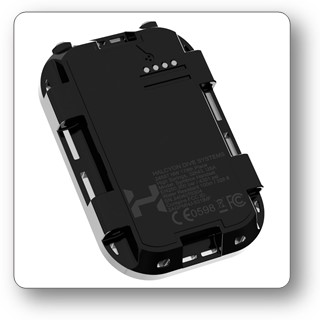
The SYMBIOS HANDSET is laser marked with a label containing information about the manufacturer, the model, CE and FCC symbol, and the serial number indicating also the manufacturing year and month. The first two digits of the serial number are the last two digits of the production year.
FCC
This device complies with Part 15 of the FCC Rules. Operation is subject to the following two conditions: (1) This device may not cause harmful interference, and (2) this device must accept any interference received, including interference that may cause undesired operation.
Changes or modifications not expressly approved by the party responsible for compliance could void the user’s authority to operate the equipment.
NOTE: This equipment has been tested and found to comply with the limits for a Class B digital device, pursuant to Part 15 of the FCC Rules. These limits are designed to provide reasonable protection against harmful interference in a residential installation. This equipment generates, uses, and can radiate radio frequency energy and, if not installed and used in accordance with the instructions, may cause harmful interference to radio communications. However, there is no guarantee that interference will not occur in a particular installation. If this equipment does cause harmful interference to radio or television reception, which can be determined by turning the equipment off and on, the user is encouraged to try to correct the interference by one or more of the following measures: - Reorient or relocate the receiving antenna. - Increase the separation between the equipment and receiver. - Connect the equipment into an outlet on a circuit different from that to which the receiver is connected. - Consult the dealer or an experienced radio/ TV technician for help.